
Getting the clipping by source
There are various ways to find your clipping
- Clipping receives from the journalists.
Unfortunately, we are receiving from the journalists more or less 10% of the articles distributed.
-
Mepax’s Project Managers are in charge of checking one or various countries via our Top 1000 Media which is the source of the media that they publish our article in regularly. There are 2 type of subscription:
- Print Magazines subscription taken are checked in our bimonthly team meeting.
- Online Magazines have to be checked monthly, via Top 1000 Media.
To check online via Top 1000 media, please go to Main Menu, under Media Info click on Top 1000 Media and by scrolling in the drop-down box call language select your country you want to consult.
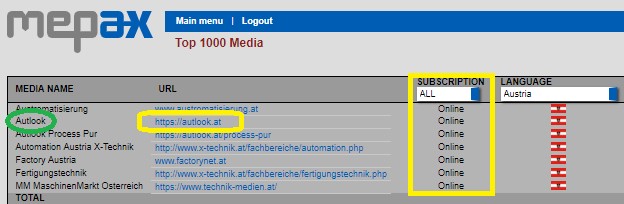
For example, if your magazine has an online subscription, you can click on the blue URL and you will be directly taken to the online magazine as shown above in yellow. Once you are in the magazine you must look for anything related to your client such as articles or advertisement. When you find something, you must take a screen shot in JPG format, this is in fact your clipping which you must now upload into the database.
As shown above in green by clicking on the Media Name you can directly go to the Magazine profile.
-
TalkWalker
TalkWalker is a powerful tool that browses media all over the world for articles with certain keywords we program.
It is not perfect, but it is the best tool we have found so far. For Seco Competitor Monitoring, we got 50% more articles than before once we started using TalkWalker.
TalkWalker can be quite tricky to use. For some customers that have very specific names, programming is simple, but for some others that have names that are very common, it can get very complex.
If you are not using TalkWalker yet and you want to use it, please contact Manu V or Guillaume to get your account created.
1 - Using a topic that has already been programmed
Login to TalkWalker.
Login: s.jedidi@mepax.com
PW : NuM2009j
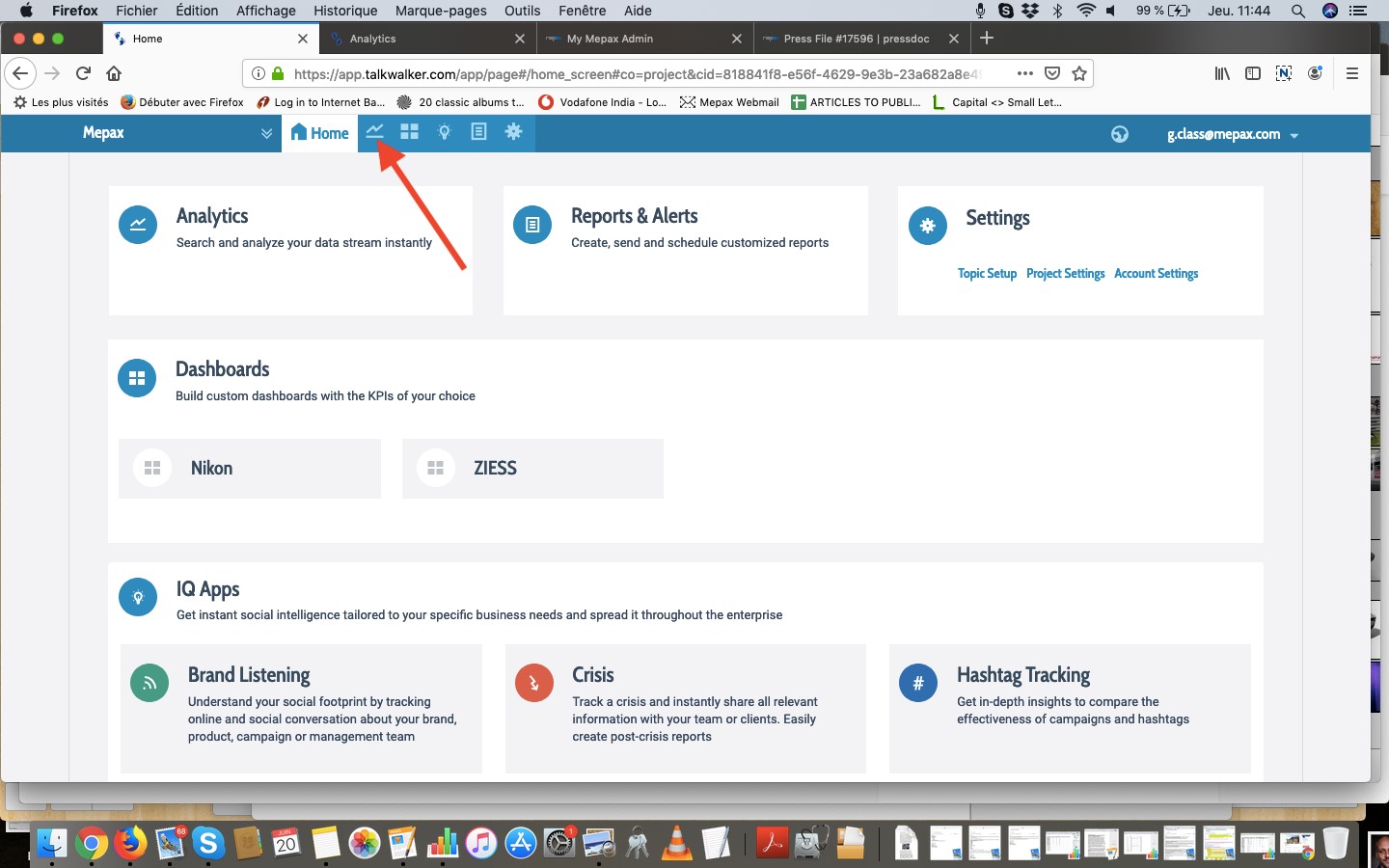
- Go to Analytics as shown above by the red arrow:
Choose the topic by scrolling down on the side as displayed below by the red arrow.
They are sorted in files per Project Leader. You have to click on the little arrow to open the file and see the topics.
Competitor Monitoring have their own file. As there is a topic for each company we monitor, it is not sorted by project leader.
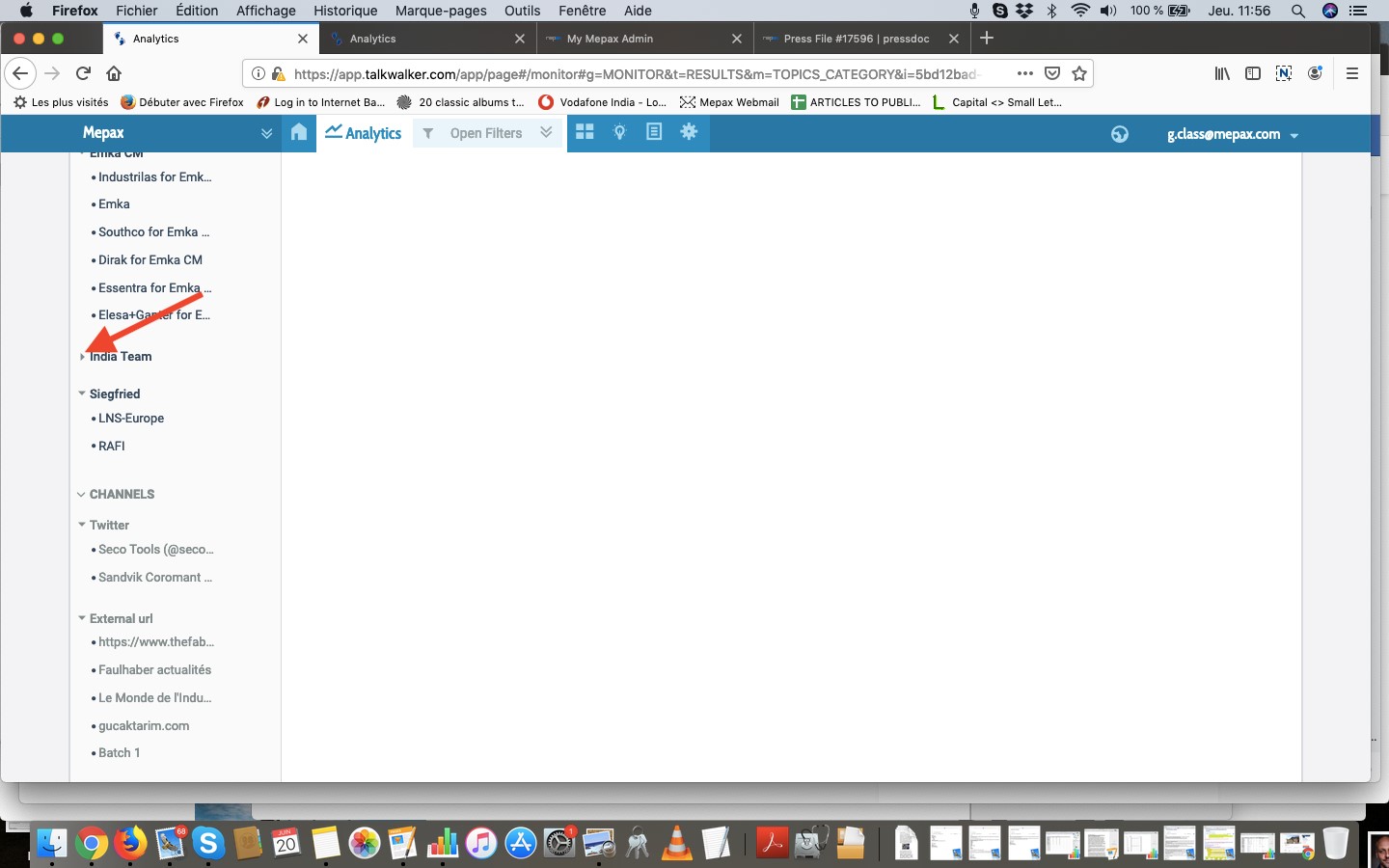
- Click on the customer name and the results will appear:
The statistics are at the Top of the page. Scroll down to see the articles.
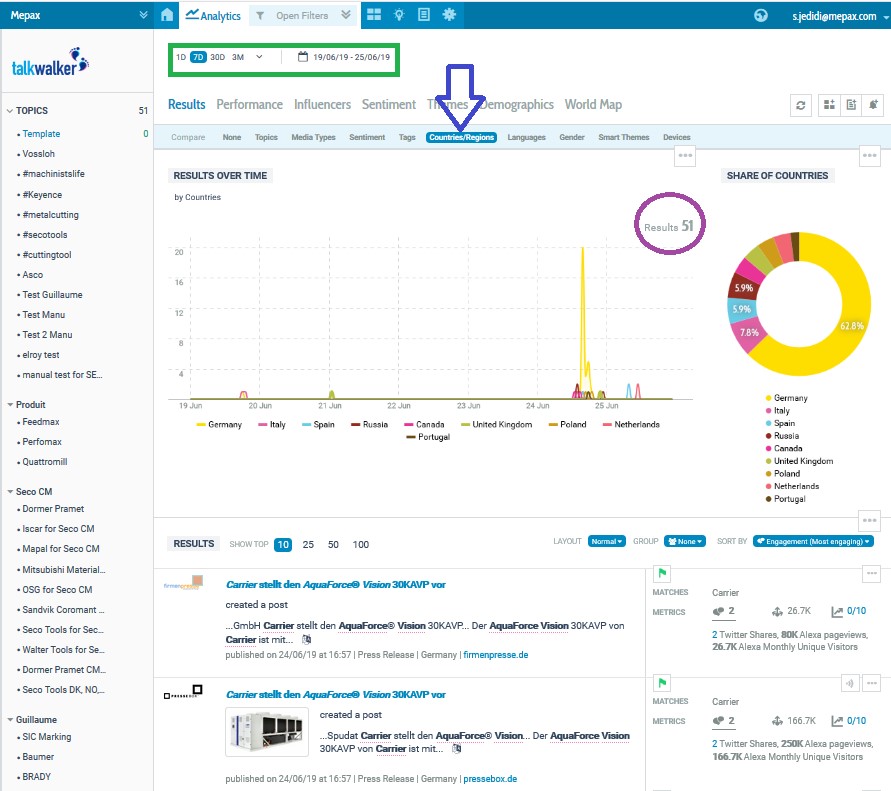
On the top, in « Open Filters » you can choose the dates you want the articles from, as show below in green. If there have been many countries programmed, you can filter the results by country by clicking on Countries/Regions shown in blue below.
There are 2 ways of working with the results and doing your clipping:
- Just click on any article, it will open in a new tab.
- By getting the excel report:
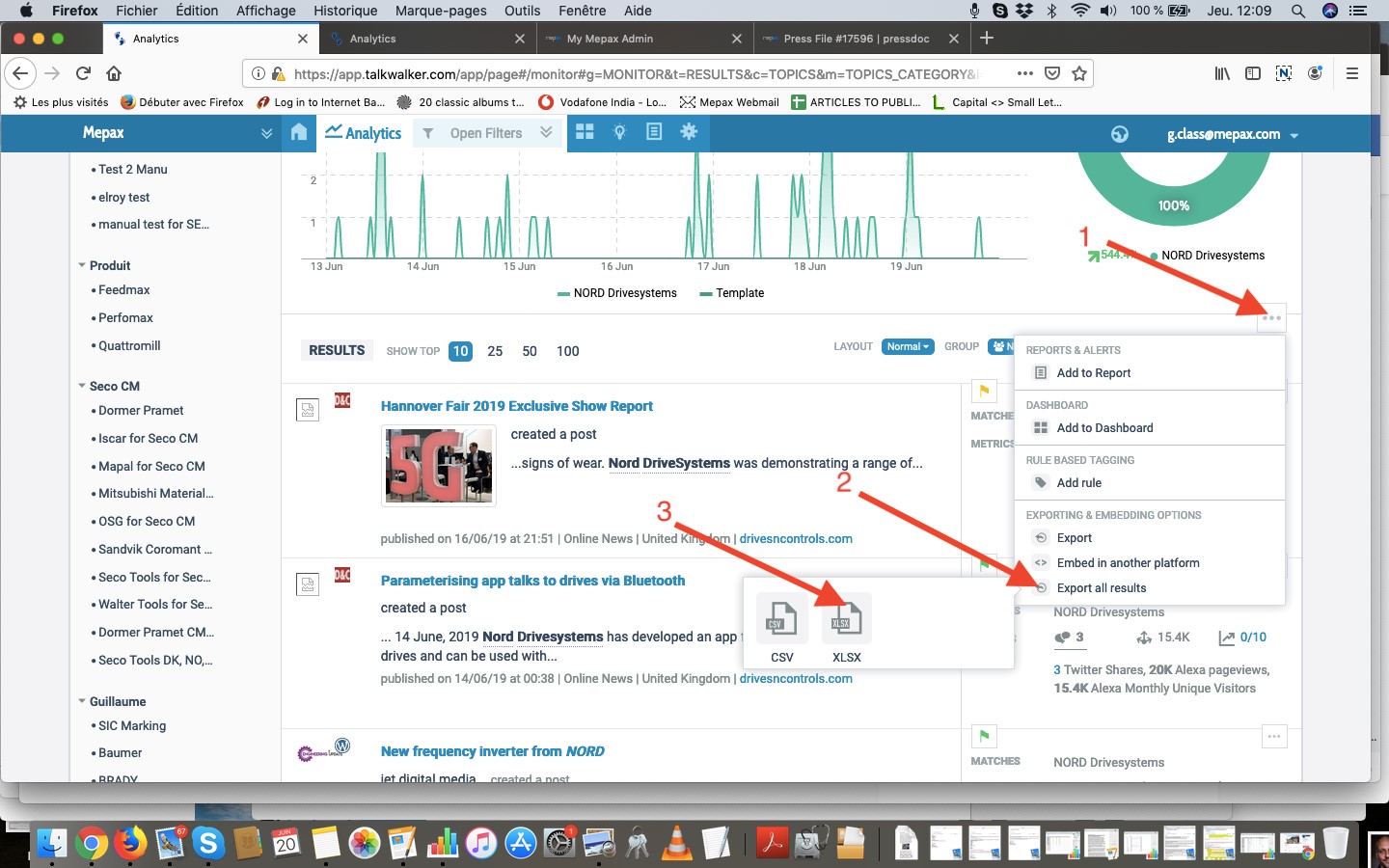
To do this follow the process as shown in the below by the 3 red arrows:
Then click on Download.
Detecting Medias not Crawled or not Crawled properly:
Some medias are not monitored properly by TalkWalker. If you find articles that should be in your TalkWalker reports and are not, please inform Guillaume and Manu V. Guillaume Class g.class@mepax.com or Emmanuel Vernay e.vernay@mepax.com
2 - Using a topic that has not already been programmed
Very important:
Before saving a programming on TalkWalker, you have to test it with preview.
Preview gives the results for the last 7 days. If you have over 50 results the last 7 days, DO NOT SAVE IT and correct your programming. Otherwise, it will « eat » all the allowed results we have (100000/Month) and TalkWalker will be blocked.
On the main menu, go to « Topic Setup » in « Settings ».
Create a new Topic by clicking on « TOPIC + »
-
Search with Google/Internet
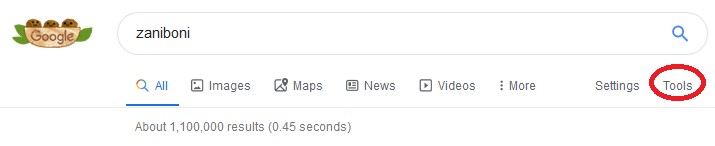
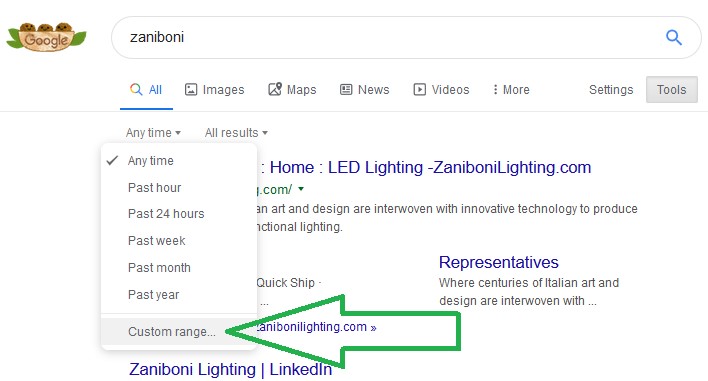
Using google or your chosen search engine search for your press release by copy and pasting the PR title or keywords into the search box. To target your search, select tool in red below, then Any time, click on Custom range as shown below in green then enter the search from date which is the date you distributed your PR.
-
Journalists Access/ by press document
Another way to search for your clipping is use the database. Go to Main Menu, then press file status, by scrolling in the drop-down box select your customer and your PR. Once you have your press file open, click on journalist access as displayed below in purple.

This give you a list of all the journalists who have accessed the PR.
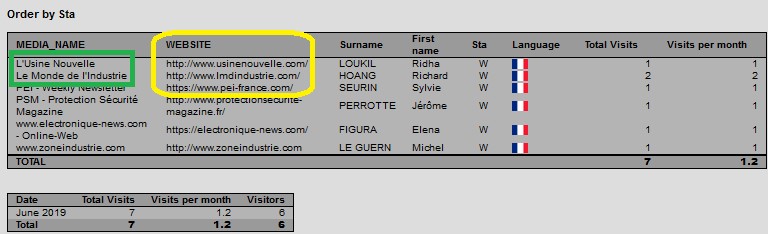
Click on the website link to carry out your article search as shown above in yellow. This way of looking for clippings is useful because it is the only way you can directly access a media with an associated journalist, who has accessed your PR via their journalist private access.
As shown above in green by clicking on the Media Name you can directly go to the Magazine profile.